How to resize and convert photos in bulk without uploading them
2026-11-07
The difference between max size, percentage and exact dimensions, and how to convert many photos to JPG, PNG or WebP in one go.
Three ways to change the size
The right way to resize depends on what the photo is for. Here are the three most common options.
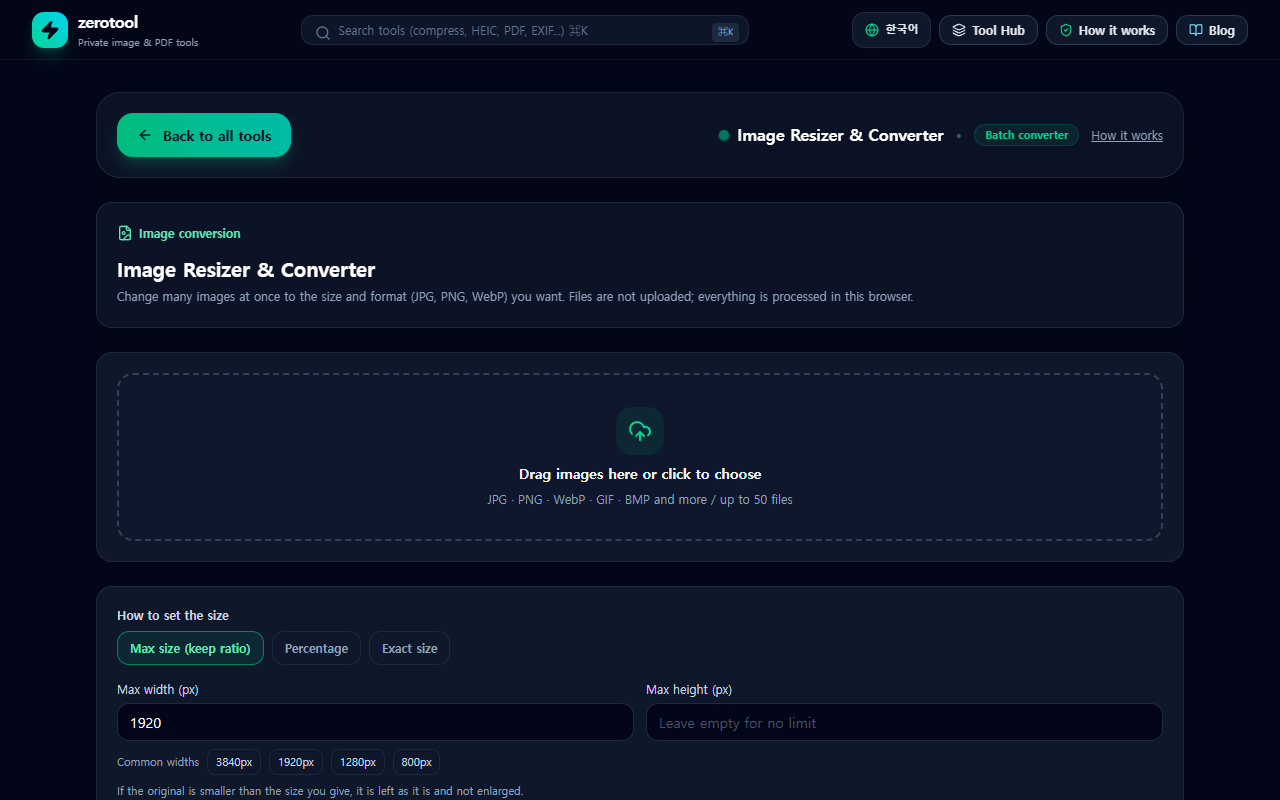
- Max size: fits the photo inside a maximum width and a maximum height. You can enter just one of them, and the proportions are kept. For example, a maximum width of 1,600 pixels shrinks only the photos wider than that.
- Percentage: shrinks every photo by the same amount. At 50 percent, both the width and the height become half.
- Exact size: you type the width and height. Use it when a form asks for a set size such as 600 by 800. If the size does not match the original proportions, the photo can look stretched, so check the aspect ratio first.
Converting the format at the same time
JPG has the widest compatibility. PNG suits transparent backgrounds and sharp graphics. WebP gives smaller files at similar quality, but some programs cannot open it. Doing the resize and the format change in one step avoids saving the image twice, which would lower the quality again.
Processing many photos at once
1. Add all the photos together. You can select several files at a time.
2. Choose the size method and enter the values. The same setting applies to every photo.
3. Choose the output format: JPG, PNG or WebP.
4. Check the results. Open a few first and confirm the orientation and colours.
5. With several files, you can download one ZIP. You can also save each file separately.
Resizing only, or resizing and compressing
If the photos are simply too large, resizing alone may be enough. If a file-size limit applies, resize first and then compress with the image compressor. Doing it in the opposite order can lower the quality more.
Things to check
- Make sure the setting does not enlarge a small photo. Enlarging makes it blurry.
- Converting a transparent PNG to JPG fills the transparent area with a solid colour, usually white or black.
- Output file names are based on the original names. Check your downloads folder for files with the same name.