How to merge, split and reorder PDF pages without uploading them
2026-11-07
Merge PDFs, delete, rotate or reorder pages, and extract ranges, all in your browser, with the limits you should know.
The problem with many online PDF tools
Sending a contract, an application or a school record to an online PDF tool can feel risky, because many tools upload the file to their servers first. zerotool’s PDF page manager reads and merges the file inside your browser, so the document does not leave your device.
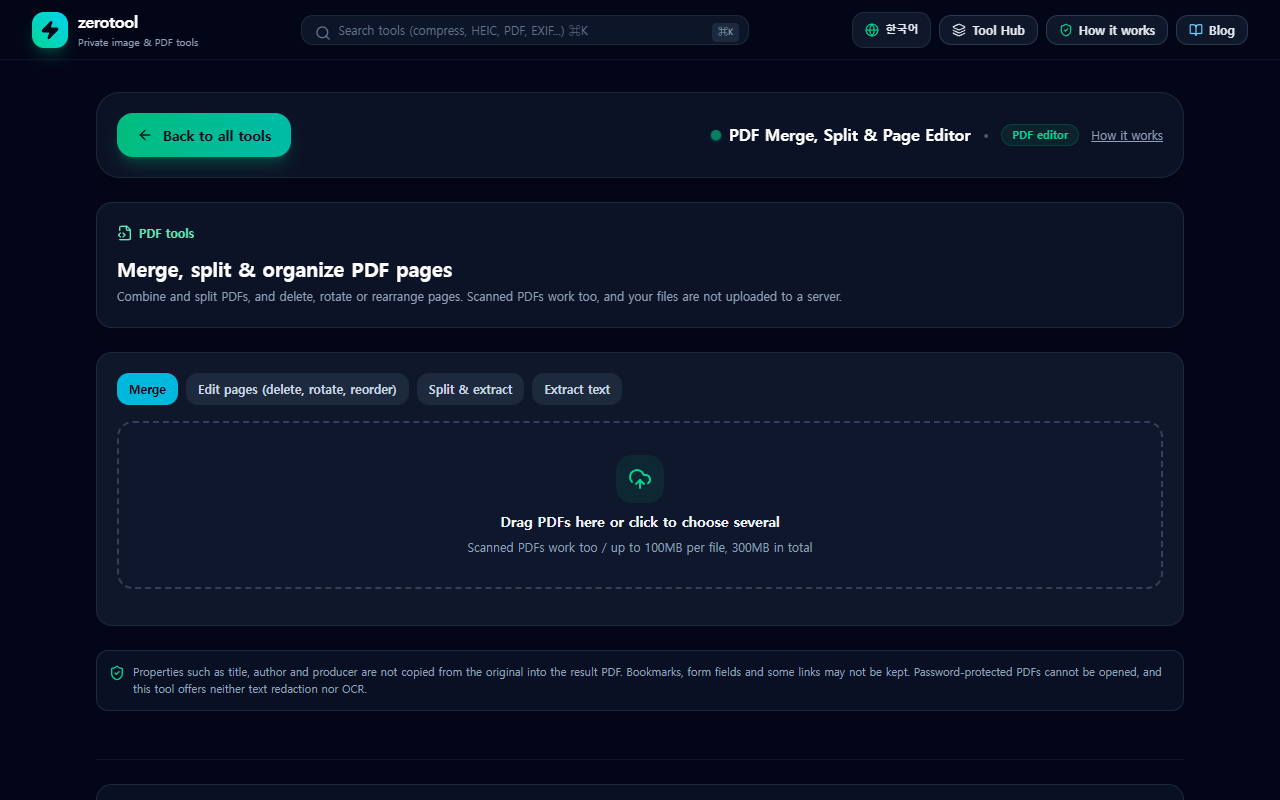
Merging: combine several PDFs into one
1. In the Merge tab, add two or more PDF files.
2. Put the files in the order you want, using the up and down arrows.
3. Press the merge button to create one PDF with the pages in order.
The page count of the result is the total of all the files. If you add only one file, the merge button stays disabled. That is a prompt to add at least two files, not an error.
Editing pages: delete, rotate and reorder
The Edit pages tab lets you work with a preview of each page. Delete the pages you do not need, turn a sideways scan in 90-degree steps, and change the order with the up and down arrows. When you save, the tool creates a new PDF and leaves the original unchanged.
Splitting and extracting ranges
The Split and extract tab has three modes. You can extract the pages you choose into one PDF, split by ranges with one PDF per range saved as a ZIP, or save every page as its own PDF in a ZIP. Extraction takes a list such as "1-3,5,8-10", and the pages are placed in the order you type them. This is handy when you only need one section of a long report.
Extracting text
The Extract text tab pulls the text out of each page of a PDF that contains a text layer. You can copy it into a note or search it. A scanned document made from a photo may have no text layer, so nothing will be extracted from it.
Limits worth knowing
- Each file can be up to 100 MB, and the combined total for one run can be up to 300 MB.
- A password-protected PDF cannot be opened. Remove the password in the program that created the file first.
- Document properties such as the title, author and producing program are not copied to the result.
- Bookmarks, form fields and some links may not survive the process.
- The tool does not redact text or run optical character recognition. A black box drawn over text may leave the original text underneath, so check carefully.
A checklist before you start
- Keep the original file. The tool creates new files and does not overwrite the original.
- Check the page order and rotation in the result before you send it.
- Before you send the document anywhere, confirm that no page you did not want has been included.