Make a White Background Transparent (PNG)
2026-11-07
How to click a background color to make it transparent, the difference between connected-only and every-pixel removal, how to set the tolerance, and which images this does not suit.
What it works for
It works for images whose background is almost a single color, such as a logo, signature or icon on white, or a product shot on a plain backdrop. This tool is not an AI feature that finds the outline of a person or object. You click the color to remove, and it makes similar parts transparent.
How to do it
1. Add an image. The color at the top-left corner is picked as the default color to remove.
2. Click the background color in the image. The preview shows the result on a checkerboard right away.
3. Adjust what is removed, the tolerance and the edge softness.
4. Save as PNG or WebP.
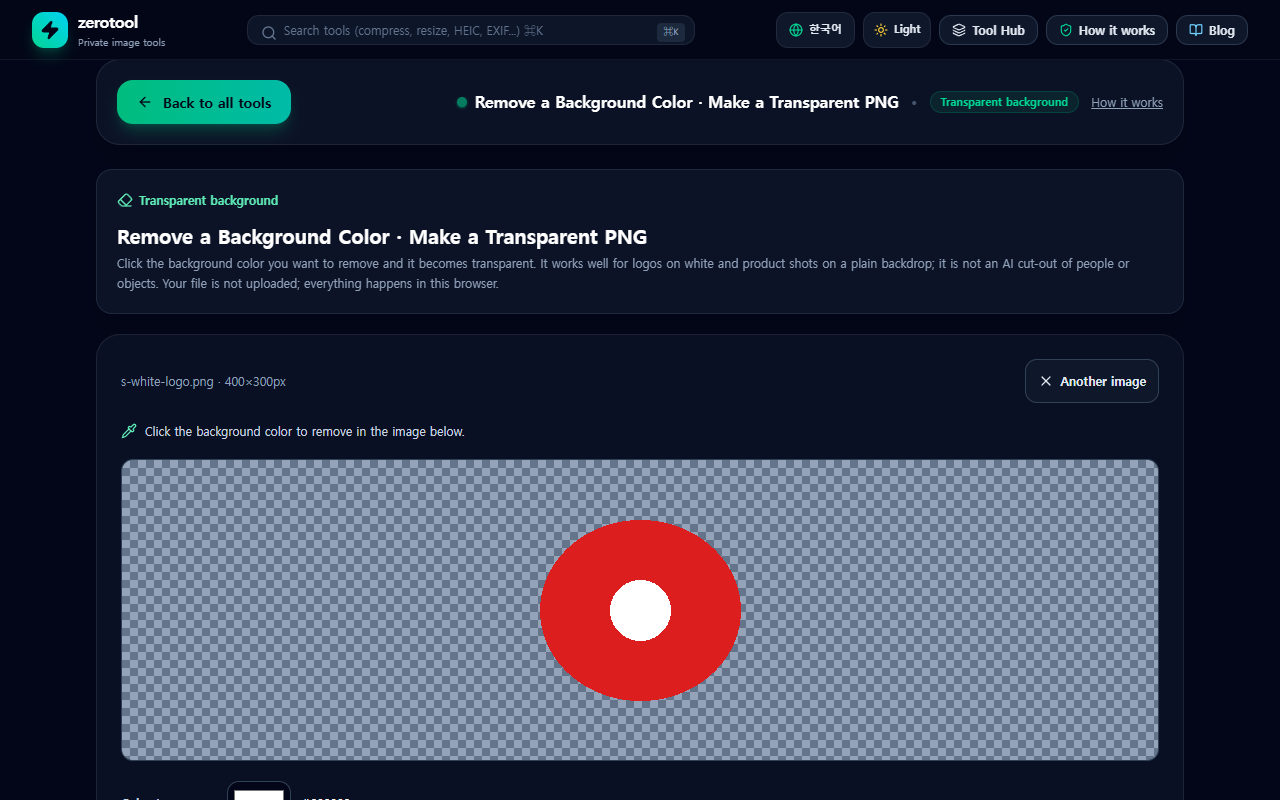
Connected only vs every matching pixel
Connected background only removes the same color that is connected to the spot you clicked. The same color inside an object, such as white inside a letter, stays, which suits most logos. Every matching pixel removes similar colors across the whole image, so the same color inside an object disappears too. Use it when the background is split into several pieces.
Tolerance and soft edges
Tolerance sets how close counts as the same color. Raise it if background remains, and lower it if the object starts to disappear. Edge softness leaves boundary colors partly transparent to reduce jagged edges. Raising it too far can leave a faint fringe on the edge, so zoom in to check.
When it does not clear well
- A shadow or gradient in the background may not clear in one go. Click another spot and try again.
- If the photo is a JPG, compression can leave speckles in the background, so you may need a slightly higher tolerance.
- A photo of a person with fine outlines such as hair is hard to cut out cleanly.
Save format
Only PNG and WebP can hold transparency, so it does not save JPG. The saved image has the same size as the original. The file is not uploaded; it is processed only inside this browser. If you want a circle or rounded corners with a transparent outside, use the round corners tool.