Crop a Photo to a Circle for a Profile Picture
2026-11-07
How to make a circular avatar or rounded corners, which formats keep the outside transparent, and how to pick an output size that fits an app or site.
Circle and rounded corners
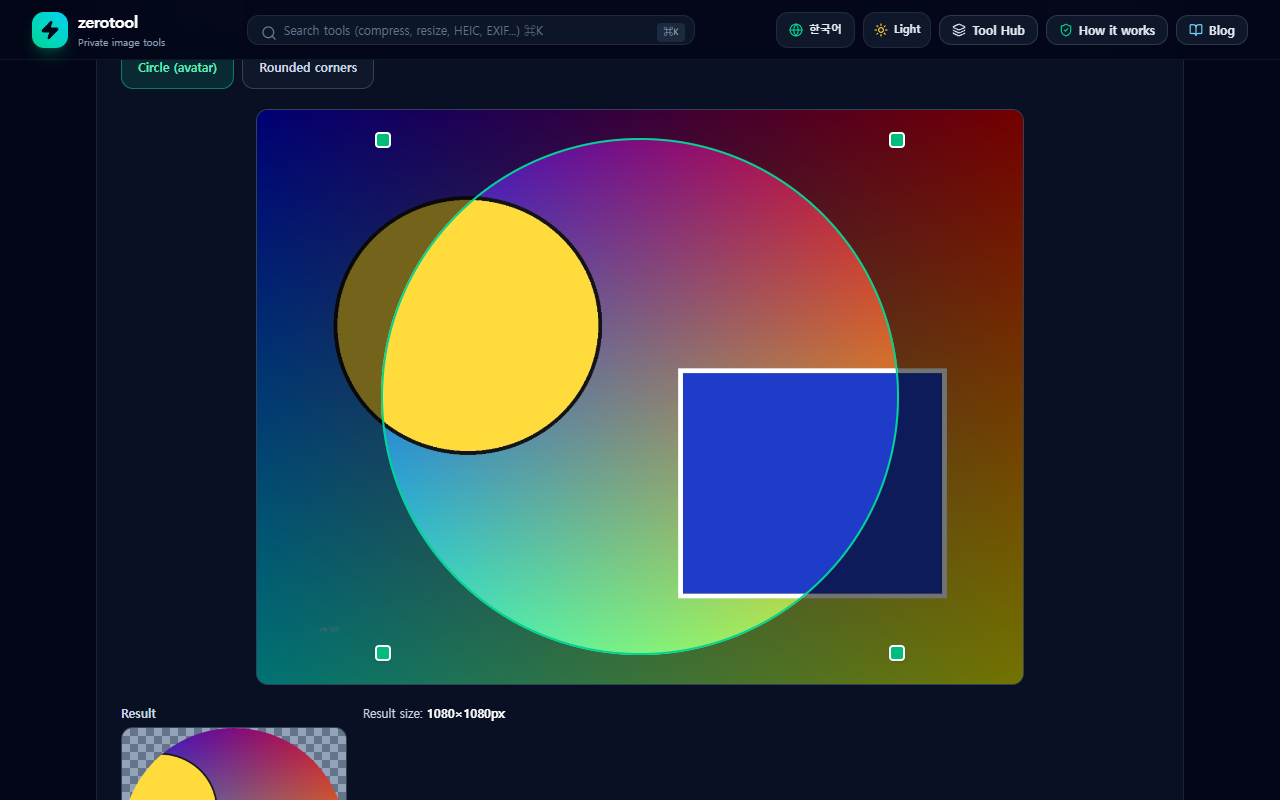
Circle locks the crop area to a 1:1 square and keeps only the circle inside it, which suits avatars. Rounded corners has a roundness from 0 to 100%; the closer to 100%, the nearer to a pill shape or circle. You can choose Free, 1:1, 4:3, 3:2 or 16:9 for the ratio.
How to make one
1. Add a photo and choose Circle or Rounded corners.
2. Drag on the image to move the area, and drag a corner to resize it.
3. Check the result on the checkerboard preview.
4. Choose an output size and save.
Keeping the outside transparent
Saving as PNG or WebP keeps the outside transparent. JPG cannot hold transparency, so it is filled with the color you pick. If you are not sure whether the place you upload to supports transparency, choose a background color that suits it and save as JPG.
Output size
The output size can be the original or a long side of 1024, 512 or 256 pixels. If an app or site recommends a profile image size, choose the nearest one. The saved name is the original followed by -circle or -rounded.
The file is not uploaded; it is processed only inside this browser.