Using a full-screen desk clock with a D-Day countdown
2026-11-07
Using a full-screen clock on a tablet or second monitor, setting D-Day countdowns for exams or deadlines, and keeping the screen awake.
When a desk clock helps
Some work needs you to check the time often, but picking up your phone breaks your concentration. A large clock on a tablet or a second monitor lets you know the time with a small glance. The desk clock tool was made for that.
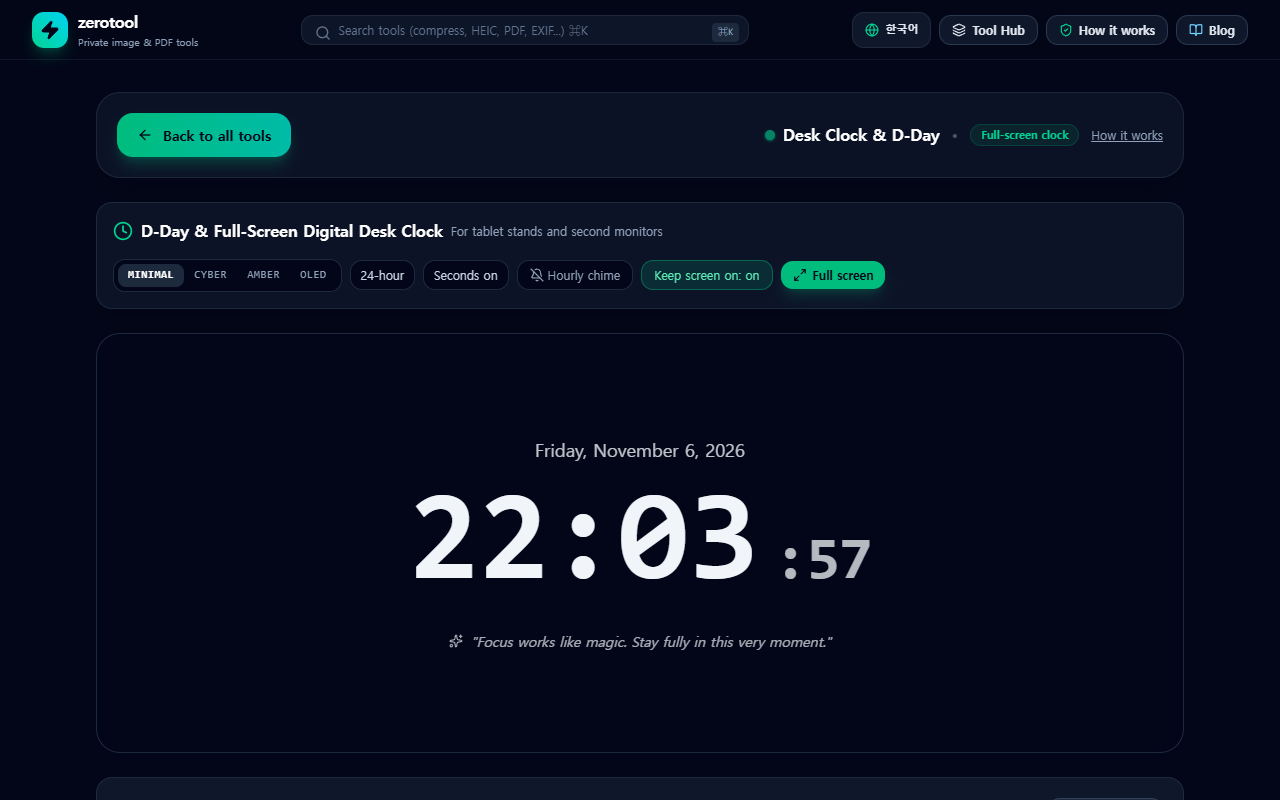
Running it full screen
Full screen makes the clock fill the display, so it is easy to read from a distance. It works well propped up on a tablet stand or shown on one side of a second monitor. Exit full screen to return to your normal layout.
Setting up D-Day countdowns
For dates that matter, such as an exam, a deadline or an anniversary, add a D-Day. Choose the date and the number of days left is calculated for you and shown alongside the clock. You can add several, and the nearest date is the one to watch.
- Keep only a few important dates, so the list is easy to scan.
- Remove a date you no longer need with its delete button, so the list stays tidy.
Turning on the hourly chime
With the chime on, a soft bell rings once at each full hour. It is a useful marker when you tend to lose track of time during focused work. You can turn it off whenever it becomes a distraction, and it is best left off in shared spaces.
Keeping the screen awake
Most devices turn off the screen after a while. The desk clock asks the device to keep the screen on, so the clock stays visible. Browser or device power settings can cancel this, so if the clock goes dark, tap the screen to wake it.
A daily line of encouragement
The clock also shows a short line of encouragement that changes each day. Read it once when you start work and let it set the tone. If the line does not suit you, simply ignore it.
Things to check when you set it up
- The settings are stored in your browser, so you need to add the D-Days again on another device.
- On a shared computer, clear the D-Day list after you finish.
- If you want the same clock on several devices, set each one up separately.