How to convert PDF pages to PNG or JPG images
2026-11-07
How to choose the DPI (resolution), when to pick PNG or JPG, and how to convert only the pages you need into a ZIP file.
Why convert a PDF page to an image?
Turning a PDF page into a picture makes it easy to paste into a blog, a chat or a presentation. Print shops often ask for page images too. And an image opens on almost any device, even where a PDF viewer is not available.
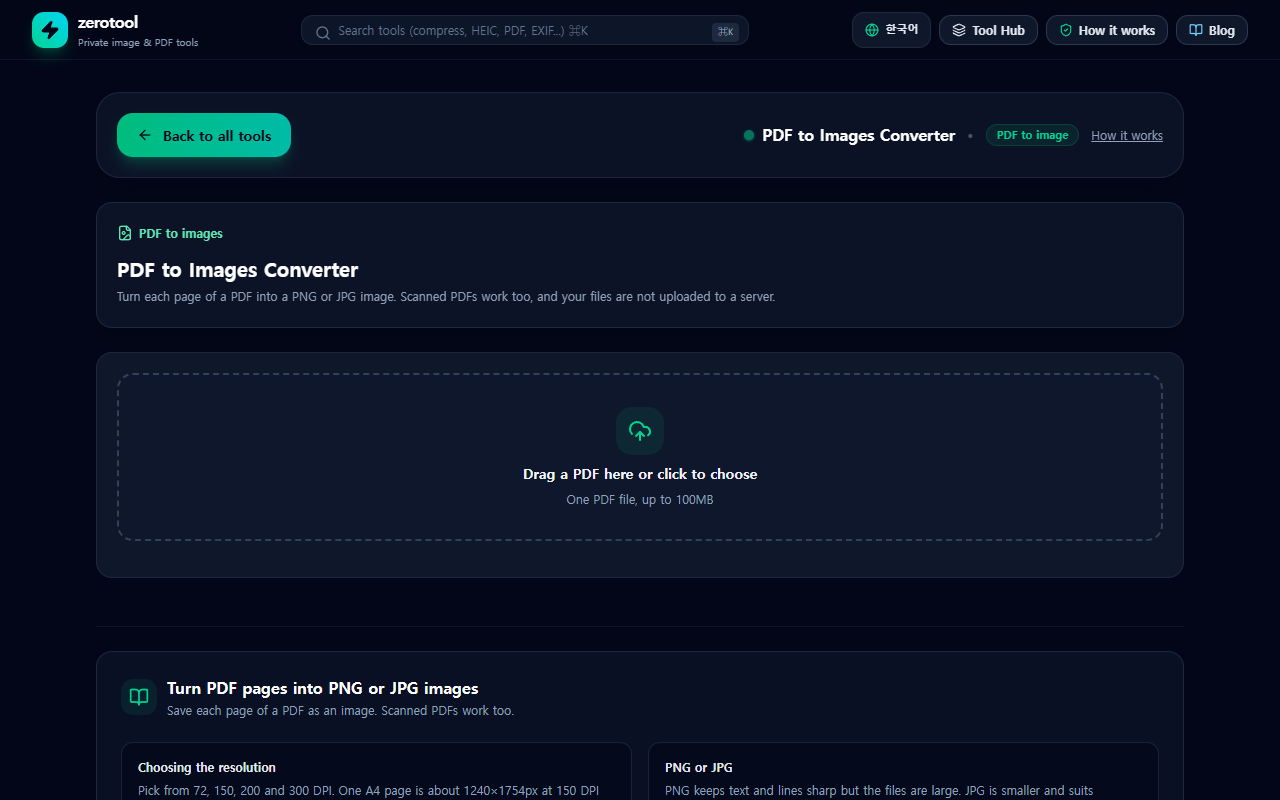
Choosing the DPI (resolution)
DPI is the number of dots per inch. A higher value gives sharper text and lines, but the files are larger and take longer to create.
- 72 DPI: suitable for small previews or a quick web post.
- 150 DPI: good for reading on a screen. It is enough in most cases.
- 300 DPI: the usual choice for print. The files are large, so choose it only when you need it.
PNG or JPG?
PNG keeps text and lines crisp and supports transparency. It suits documents, charts and tables. JPG produces smaller files, which suits pages that are mostly photos. Converting a text-heavy page to JPG can leave smudges around the letters, so start with PNG for documents.
The steps
1. Add the PDF file. Scanned PDFs can be converted too.
2. Choose the DPI.
3. Choose the page range: all pages, or only a part such as pages 3 to 7.
4. Choose PNG or JPG as the output format.
5. Check the converted images and download them. For several pages, you can download one ZIP.
Conversion happens on your device, so the PDF is not uploaded to a server. A long document takes time in proportion to its page count, so keep the window open until the result appears.
When the result looks blurry or broken
- A low resolution makes the text look soft. Convert again with the next higher DPI.
- PDFs with unusual fonts or many graphics can look slightly different from one device to another.
- A password-protected PDF cannot be opened. Remove the password in the program that created it, then try again.
Tips after converting
- Before posting on a blog, compress the PNG for the web so the page loads quickly. The image compressor can help.
- To place several pages on one image, stitch them together in an image editor after converting.
- Always keep the original PDF. Images cannot be searched for text, so use text extraction if you need to search the content.