How to compress photos to a target file size
2026-11-07
Compare choosing a quality setting with aiming for a target size such as under 300KB, and how to check the result before you share it.
When photo size becomes a problem
A single photo from a phone can easily reach 3 to 5 MB. That is a problem when an email attachment has a limit, or when a form asks for a file "under 300KB". There are two practical ways to shrink a photo.
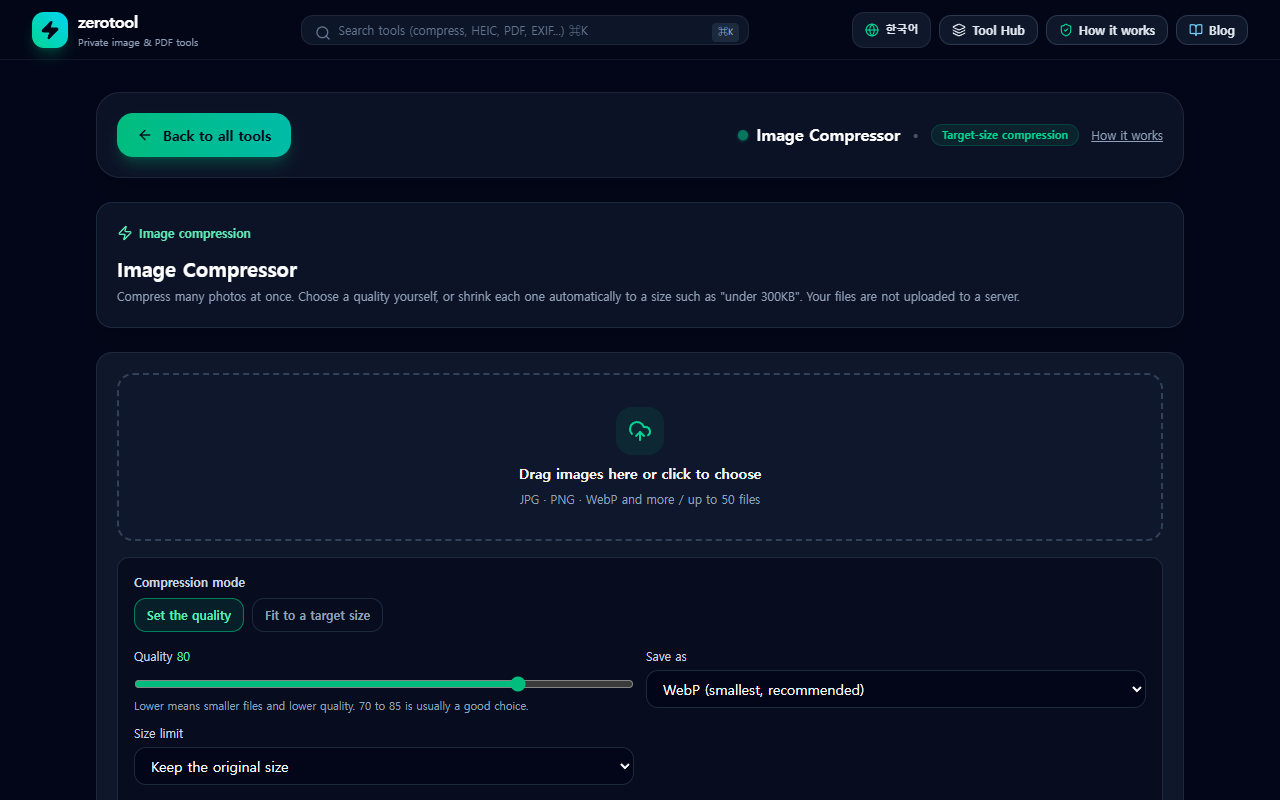
Method 1: choose a quality setting
For JPG and WebP, a lower quality value makes the file smaller. Most photos keep a clean look somewhere between quality 70 and 85, while the file often shrinks by a large amount. This method suits batches where you want one consistent setting.
Method 2: aim for a target size
If a form sets a limit such as "under 300KB", the target-size mode is easier. The tool looks for the highest quality that still fits under the limit. If even the lowest quality is not enough, it reduces the photo’s dimensions step by step and tries again. If the target still cannot be reached, it shows the smallest result it could make and tells you the target was missed.
Choosing a format: JPG, WebP or keep the original
At the same quality, WebP is often smaller than JPG. Some older programs and upload forms, however, do not accept WebP. For a file you will submit, JPG is the safer choice. Keeping the original format saves JPG as JPG and WebP as WebP. PNG is lossless, so the quality setting does not apply to it. In target-size mode, the tool converts PNG to WebP.
Check the resolution before you compress
When a photo barely shrinks, its dimensions are usually larger than you need. For viewing on a screen, a long edge of about 1,920 pixels is often enough, and resizing that alone can cut the file size a lot. You can use the image resizer for this step.
A checklist for the result
- Look at the preview on each result card. Check that faces, text and thin lines still look sharp.
- If the result looks too soft, raise the quality by 5 to 10 and compress again. Changing a setting recalculates the result automatically.
- A photo that is already well compressed may not get much smaller. In that case, keep the original.
- Before you share, check whether location data is still inside. The EXIF remover can clean it.