Blur Faces and Private Info in Photos, No Upload
2026-11-07
The difference between mosaic, blur and a black box, how to hide details safely, how strong it must be for text, and how to remove location data too.
What to hide before you post a photo
Faces, license plates, mail showing your address, and screens that show an account or card number are safer hidden before you publish a photo. The blur and mosaic tool lets you draw a box on the picture and hides only that part.
The three methods
- Mosaic splits the area into blocks and fills each block with one average color.
- Blur mixes the colors inside the area so they smear.
- Black box fills the area with solid black.
Mosaic and Blur have a strength slider. Strength is measured against the long side of the photo, so a large photo looks similar to a small one.
How to use it
1. Add a photo.
2. Choose the method and the strength.
3. Drag on the image to draw a box over each area to hide. You can draw several, and Undo last and Clear all take them back.
4. Check the effect in the preview and press Hide and save.
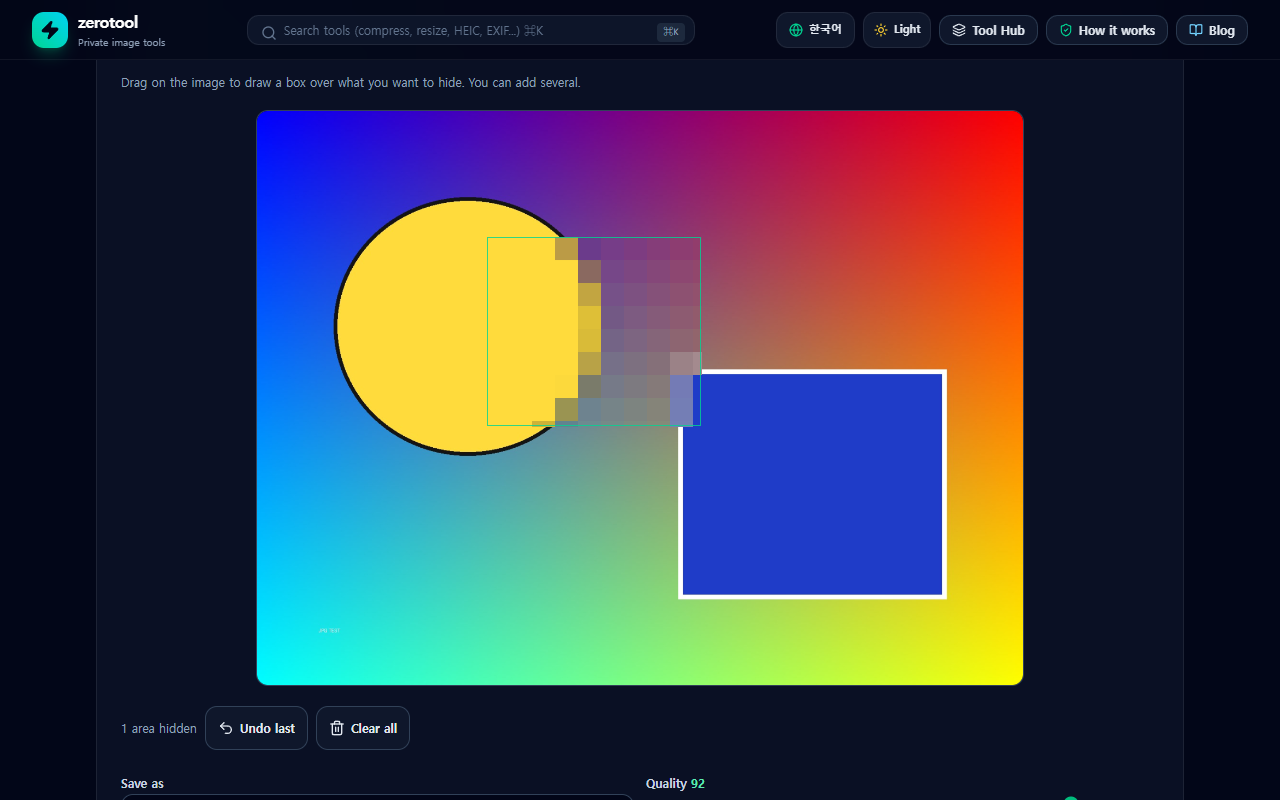
The same method and strength apply to every area. If you want different methods, save once and add the saved file again to hide more with another method.
Hide text and numbers more strongly
A light blur can sometimes be read. For anything that must not be readable, such as a number or an account, raise the strength or use the black box. The saved file does not keep the original pixels of the hidden areas. Your original file is not changed, so you can keep it separately.
Remove location data too
The saved file does not carry the original EXIF shooting data. If you are going to share the original instead of the hidden copy, check the location and device details with the EXIF remover first.
The file is not uploaded; it is processed only inside this browser.